2026 Event Party Planner for Canva: A Practical Guide for Organized, Editable Planning
Planning a birthday, wedding, baby shower, or milestone celebration in 2026 requires coordination across timelines, budgets, people, and details—often all at once. The 2026 Event Party Planner for Canva is a digital, editable template designed to consolidate those moving parts into one customizable, printable system. Unlike static PDF planners or complex project management software, this resource sits in the middle: flexible enough for personal use, structured enough to prevent oversight, and built for quick adaptation without design experience.
What Sets the 2026 Event Party Planner for Canva Apart?
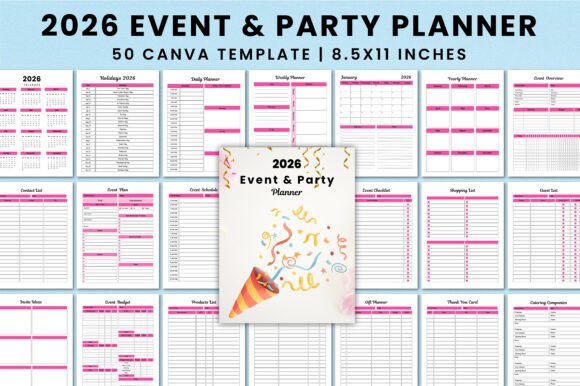
The core distinction lies in its format and accessibility. This isn’t a pre-printed physical planner or a locked PDF with fixed fields. It’s a Canva-editable file—meaning users open it directly in Canva (free or Pro), adjust colors, fonts, layout blocks, and even add or remove pages based on their event’s scope. Because it’s built for Canva’s interface, no design skills are required; drag-and-drop functionality handles most edits. It also includes a full 2026 calendar framework—monthly, weekly, and daily views—with U.S. federal holidays already marked, saving time during early scheduling.
More importantly, the structure reflects real-world planning workflows—not just generic sections. You’ll find dedicated spreadsheets for vendor payments, a split shopping list (items needed vs. purchased), a seating plan grid that supports visual rearrangement, and layered budget tracking that separates estimated costs from actual spend. The inclusion of both “Pre-Event Checklist” and “Event Checklist” acknowledges that execution happens in phases—and what matters the week before differs from what matters the day-of.
How It Compares With Other Planning Tools
When evaluating options, it helps to group alternatives by category: printable PDF planners, digital apps, and custom-built tools.
- Printable PDF planners often offer polished aesthetics and immediate usability—but they’re static. If your wedding venue changes dates or your guest list grows beyond the printed table, you can’t easily reformat or expand sections. The 2026 Event Party Planner for Canva avoids that limitation: every page is editable, duplicatable, or deletable. You can add extra guest list rows, insert a new vendor contact tab, or paste floor plan sketches directly onto the layout.
- Digital apps like Trello, Notion, or specialized wedding planners provide automation, reminders, and cloud syncing—but they require setup time, learning curves, and ongoing subscriptions. For someone managing one or two events per year, that overhead may not justify the benefit. The Canva-based planner delivers structure without dependency on platforms, logins, or updates. It works offline once downloaded, and exports cleanly to PDF or print-ready formats.
- Custom-built spreadsheets or documents offer maximum flexibility but demand significant time investment. Building a reliable budget tracker with formulas, conditional formatting for overdue tasks, and cross-linked tabs takes hours—even for experienced users. The 2026 Event Party Planner for Canva provides that logic baked in: expense categories auto-sum, checklists update progress bars visually, and date-based sections align with the 2026 calendar without manual entry.
Strengths—and Where Tradeoffs Appear
The planner excels when clarity, customization, and control matter more than automation. Its strength is in reducing cognitive load—not by replacing decisions, but by giving each decision a consistent, visible home. For example, the “Vision Board” page isn’t decorative; it’s a designated space to paste mood board images, color swatches, and font samples—all editable within Canva. Similarly, “Invitation Card Ideas” includes placeholder text boxes and layout suggestions, not rigid templates, so users adapt tone and style to match their event’s personality.
That said, it has clear boundaries. It doesn’t send email reminders, sync with Google Calendar, or generate invoices. It won’t calculate tax on catering line items unless manually entered. And while the Canva interface is intuitive, users unfamiliar with basic Canva functions (like resizing text boxes or uploading logos) may need 15–20 minutes to orient themselves—not a barrier, but a realistic onboarding step.
Also worth noting: because it’s designed for KDP interior use, the file includes printer-friendly margins, CMYK-safe colors, and bleed-free layouts. That makes it especially suitable if you’re considering printing professionally—or even assembling a bound version for gifting or client handoff.
Best-Fit Scenarios: When This Planner Fits—and When It Doesn’t
This resource suits planners who value autonomy over automation: small business owners coordinating client events, DIY couples managing their own weddings, or parents organizing multi-generational reunions. It’s particularly helpful when collaboration is involved—sharing a Canva link lets others view or comment (with appropriate permissions), and exporting to PDF ensures consistency when handing off to vendors or family members.
It also fits well for those testing the waters of digital planning. Since it lives in Canva—a tool many already use for social graphics or presentations—the learning curve is shallow. You’re not adopting a new ecosystem; you’re extending one you likely know.
Conversely, it may be less ideal for users needing recurring task automation, multi-user editing with version history, or integration with accounting tools like QuickBooks. Someone managing five simultaneous events with overlapping vendors and shared budgets might outgrow its single-document scope faster than a solo planner handling one annual party.
Another practical consideration: file size and device access. While Canva works on tablets and desktops, editing complex pages (like a detailed floor plan with dozens of labeled tables) is smoother on larger screens. Mobile editing remains possible but less efficient for granular adjustments.
Realistic Use Cases and Workflow Integration
Imagine planning a 2026 backyard wedding for 80 guests. You’d start with the “Event Overview” page to define date, location, theme, and key contacts. Then move to the “Monthly Planner” to block out major milestones—booking the venue (January), sending save-the-dates (March), finalizing catering (May). As details accumulate, the “Guest List” page tracks RSVPs, meal preferences, and plus-ones, while the “Payment Checklist” logs deposits, due dates, and receipts—all visible side-by-side with the “Budget” sheet.
Later, the “Seating Plan” page helps visualize table assignments, and the “Shopping List” splits into “To Buy” and “Purchased,” updating as you check off items. Even small touches—like the “Thank You Card” section prompting personalized notes per guest—support follow-through without requiring separate note-taking.
For a simpler use case, consider a 2026 birthday party for a child. You might delete the “Catering Companies” and “Floor Plan” pages entirely, keep the “Invitation Ideas” and “Decor Checklist,” and repurpose the “Vision Board” for craft inspiration. The flexibility is intentional—not every section must be used, and none force unnecessary complexity.
Making an Informed Choice
Choosing a planner isn’t about finding the “best” tool—it’s about matching structure to your working style, event scale, and technical comfort. The 2026 Event Party Planner for Canva stands out for its balance: more adaptable than static printables, less demanding than full-scale apps, and purpose-built for the logistical rhythm of event planning in a specific year.
If your priority is minimizing friction—not reinventing systems—this planner offers a grounded starting point. It won’t replace judgment or creativity, but it does remove guesswork about where to record the florist’s deposit or how to track which guests requested gluten-free cake. That kind of quiet reliability, especially across multiple planning phases, is often what reduces stress more than any feature list.
Before deciding, ask yourself: Do I prefer editing in a familiar design environment? Am I comfortable managing files locally or via Canva’s cloud? Do I need live collaboration or deep integrations—or is a clean, self-contained system sufficient? Answering those honestly helps clarify whether the 2026 Event Party Planner for Canva aligns with your next planning cycle—or whether another approach better serves your current needs.